


Options
There is a set of interface and export options, which are available under Options | Environment... menu.
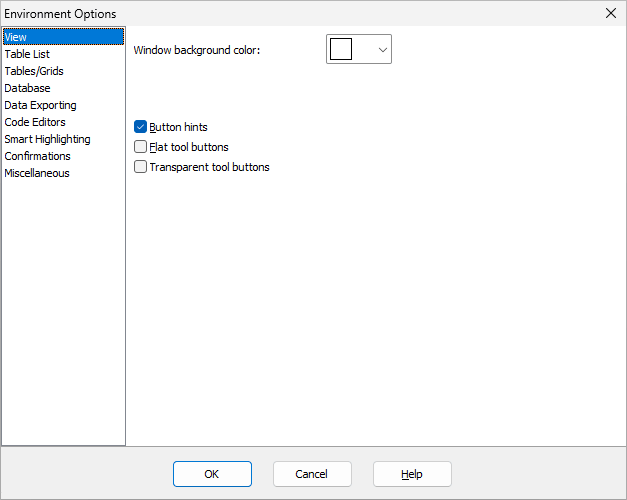
View
Window background color - specify background color of all Exportizer windows.
Button hints - show button hint, when mouse is over the button. If not set, you still can view the hint in the left part of the status bar.
Flat tool buttons - set flat view of tool buttons in Exportizer interface.
Transparent tool buttons - set tool buttons partially transparent.
Table List
Define the application's table list behavior and view here. These setting are applied to all lists of tables in the application.
Show table partitions in table list - show PostgreSQL table partitions in the list of tables. In PostgreSQL databases, table partitions (declarative partitioning) are functioning like separate tables, so sometimes it could be useful to see them in the table list for easier access.
Show sequences in table list - show PostgreSQL sequences in the list of tables. In PostgreSQL databases, sequences can be queried like regular tables.
Omit user's schema in object names - omit the schema name prefix in the database object names owned by the current user for Oracle databases. If you choose to omit, then the objects of the currently logged user will be shown in the upper part of the object lists without their schema name prefix. This option affects the table list of the main application window and lists of tables and other objects in the hints of SQL editors.
View
Choose the color scheme to apply: Auto, Light, Dark.
Tables/Grids
Here, you configure the behavior and view of all interface tables and data grids of the application.
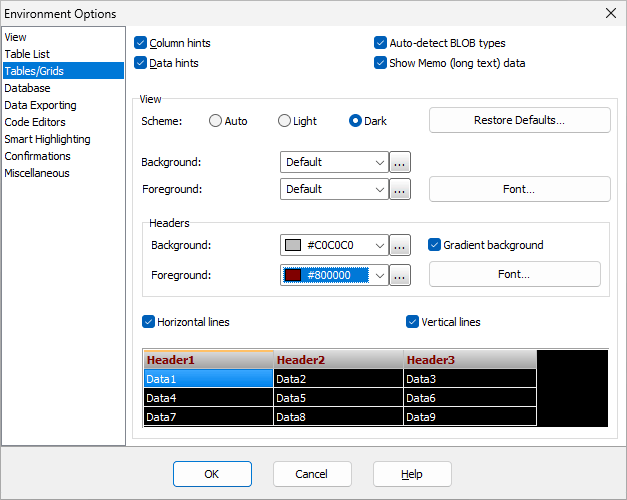
Column hints - show column hint, when mouse is over the column title. This hint shows the actual name and type of database field of the column.
Data hints - show data hint, when mouse is over the grid cell and text of the cell does not fit the cell. It is useful to view data of MEMO / CLOB fields or long text data.
Auto-detect BLOB types - automatically detect the actual data type of BLOB fields in each record and show the data depending on this data type. Using this option may decrease performance, so it is not recommended for large BLOBs. Note, that Exportizer can automatically detect only several graphic formats (bitmap, metafile, icon, JPEG, GIF, PNG) and some other formats (for example, RTF) and only if the data contains all needed information for this.
Show Memo (long text) data - show content of Memo/Clob fields in data grids; otherwise, the data of such fields can be shown either when the mouse is over the data cell or when the height of rows in the grid is increased. Using this option may decrease performance when browsing large tables.
View
Here, you specify how the tables/grids should look.
First, choose the color scheme to apply: Auto, Light, Dark. Auto is not a separate scheme, it uses Dark or Light scheme depending on the global application's settings where Light is the default theme and Dark is under development yet.
Then, customize the chosen schema if needed:
Background - specify the common background color for the grids.
Foreground - specify the font color and other font attributes for text cells.
Headers
Background - specify the background color for the grid titles and frozen cells (if any).
Gradient background - use gradient background for data grid column headers and frozen cells. A cell with gradient background usually looks like a button. When gradient background is used, changing background color for individual column header(s) has no effect in grids, but has effect when printing data from the grid or exporting data to formats like Excel or HTML with Use GUI settings option set. When the gradient background is off, changing background color of the column headers affects the grid look too.
Foreground - specify the font color and other font attributes for grid column titles.
Other
Horizontal lines - show horizontal lines in grids. This option does not affect printing or exporting.
Vertical lines - show vertical lines in grids. This option does not affect printing or exporting.
Notes
- You can revert the changes made to the selected scheme by clicking Restore Defaults button.
- If you click OK in this dialog, changes made to both schemes will be applied.
Database
Trim trailing spaces - trim trailing spaces and control characters when working with data aware controls (e.g. grids). This option affects only char and varchar data.
Save and restore SQL windows - save all open SQL windows when disconnecting from the current database, and restore them back when connecting to that database again.
Case sensitivity in filter - use case sensitivity in table filters. This option does not work for ADO connections.
Partial comparing in filter - use partial string match in table filters. Strings in filter condition that end in an asterisk signify a partial string match with the asterisk matching any number of characters. This option does not work for ADO connections.
Use server output - use server output (FD connections only). Server output is supported by several DBMS (e.g. Oracle or PostgreSQL). Note: for some DBMS, using server output may require additional server round trips.
Fetch size - specify count of records to fetch at a single fetch operation for FD datasets. This option affects the dataset opening time and the speed of exporting. Try to play with it to find the optimal performance for your environment. This option is available in Exportizer Enterprise only.
Creating Text Table Schemas
Rows to analyze - Specify the number of rows the application must automatically analyze in the text file to detect the data structure. The same number of rows will be displayed in the file preview.
Data Exporting
Classic interface - use the legacy interface for data exporting (with a separate control for each setting); otherwise (default), the grid interface is used (all settings are combined in one grid). The classic interface uses a bit more memory and is loaded a bit slower, but all other things are rather a matter of personal preference. Probably, the grid interface can be found useful by advanced users, while the classic interface is for novices. You can compare both interfaces.
Suggest folder of source database - suggest folder of the source database in the application's Save dialog to export files to; otherwise, the default folder will be suggested (usually last used folder); anyway, you can change the folder for exporting directly in the Save dialog.
Suggest default table title - in Export dialog, fill the target table title automatically deriving it from the source dataset name (for target formats which support the Table title option); otherwise, you must fill it manually or leave it blank.
Suggest default sheet name - in Export dialog, fill the target sheet name automatically deriving it from the source dataset name (for target formats which support the Sheet name option); otherwise, you must fill it manually or leave it blank.
Suggest default range name - in Export dialog, fill the target cell range name automatically deriving it from the source dataset name (for target formats which support the Range name option); otherwise, you have to fill it manually or leave it blank.
Importing/Exporting from Clipboard
Rows to analyze - Specify the number of rows the application must automatically analyze in clipboard data to detect the field separator and types of the fields. The same number of rows will be displayed in the clipboard data preview.
Exporting Current Row
Base file name - Specify the base name of the target file when exporting current row. It should be a name without extension. When exporting data, you can change the name anyway.
Cell borders - use cell borders and their width (if any) for those target formats which support the borders of the cells (e.g. XLSX, HTML etc.).
Action after exporting - specify the action after the current row exporting: open file, open folder or no action.
Code Editors
Configure the application code editors (SQL editors and expression editors) here.
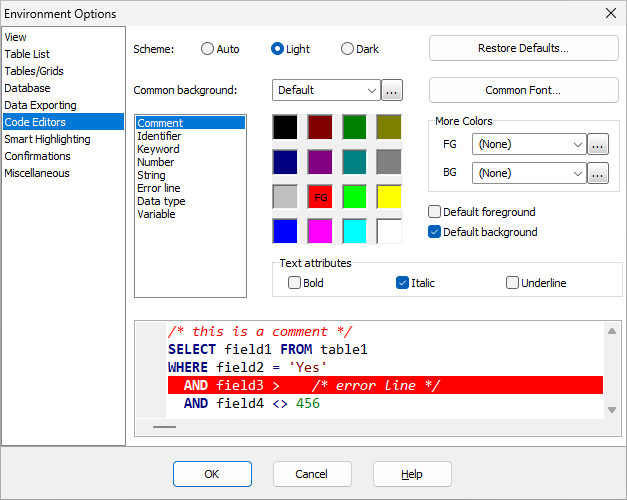
First, choose the color schema to apply: Auto, Light, Dark. Auto is not a separate scheme, it uses Dark or Light scheme depending on the global application's settings where Light is the default theme and Dark is under development yet.
Then, customize the chosen schema if needed, i.e. choose the font and background for the code editors, and choose the font attributes and background for different code elements:
- Comments
- Identifiers
- Keywords
- Numbers
- Strings
- Error lines
- Data types
- Variables
Notes
- You can revert the changes made to the selected scheme by clicking Restore Defaults button.
- If you click OK in this dialog, changes made to both schemes will be applied.
Smart Highlighting
Configure smart highlighting of code fragments in code editors whose text matches the text of the selected fragment:
Enabled - turn the whole feature on/off.
Case sensitive - use case sensitivity when searching for matching elements. In case sensitive search, big and small letters (uppercase and lowercase) are treated as different.
Whole words only - search for whole words only when matching fragments.
Foreground - specify the foreground (font) color for found fragments.
Background - specify the background color for found fragments.
Confirmations
Creating schema for text table (if does not exist) - suggest to create a schema when opening text table without the schema of field definitions.
Using Create_Or_Replace export mode - ask whether to continue with this export mode when trying to export data using Create_Or_Replace export mode (which exports only structure).
Miscellaneous
Automatically check for updates - check for updates automatically. It requires Internet connection to check for updates.
Online Documentation - use the online documentation (recommended) instead of the local file (internet connection is required). Alternatively, you can do the following:
- download the documentation file from Exportizer website and place it into the application folder;
- install free VLS Doc Reader app from the Exportizer website;
- turn this option off.
Note: When you turn this option off, you will need to update the local file from time to time to keep it up-to-date, for example, when new software version is published; the software will notify you when the new documentation file is available on the site if the Automatically check for updates option is turned on.