


SQL Script Export Format
Export data to one or more SQL scripts. The scripts contain series of SQL statements, which can be used later to insert, update, or delete the data in the target database tables using Exportizer Enterprise, Exportizer Pro or another SQL tool:
INSERT INTO public.customer (id, first_name, last_name) VALUES (1, 'Sandra', 'Bush');
INSERT INTO public.customer (id, first_name, last_name) VALUES (2, 'Eric', 'Miles');
...
or
INSERT INTO public.customer (id, first_name, last_name) VALUES
(1, 'Sandra', 'Bush'),
(2, 'Eric', 'Miles'),
...
or
UPDATE ORDERS SET NOTES = 'delivery canceled' WHERE ORDER_ID = 345;
UPDATE ORDERS SET NOTES = 'delivery time between 10 and 12' WHERE ORDER_ID = 411;
...
or
DELETE FROM ORDERS WHERE ORDER_ID = 345;
DELETE FROM ORDERS WHERE ORDER_ID = 411;
...
and so on.
Exporting is performed by Exportizer export engine with direct file access and therefore is very fast.
Notes
- BLOB and other fields, whose data cannot be represented in SQL text, are not exported. Consider using Database export format for that.
- SQL script is an intermediary format. Using it, you export data into the target database in two steps: first, you export source data to the SQL script, and second, you run the SQL script in your target database. Consider using Database export format to export your source data directly to the target database.
You can export data to SQL Script format either from Exportizer GUI or from the command line.
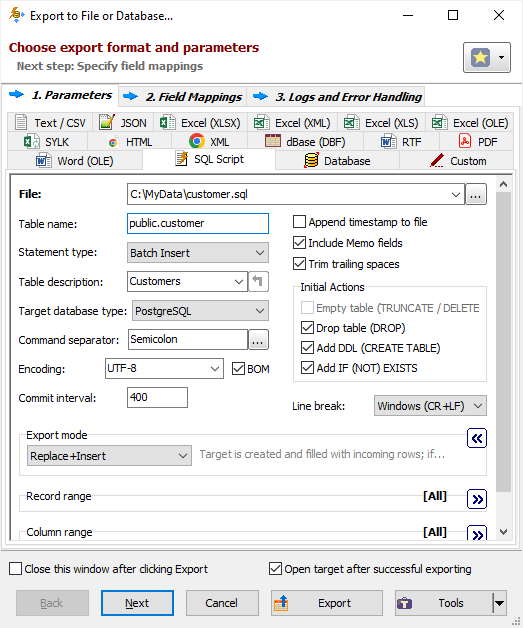
When exporting data from GUI, switch to SQL Script page of the Export dialog. If this page is not visible, click Favorite Export Formats button in the top-right corner of the window and make sure the corresponding format is selected.
Classic Interface
Grid Interface
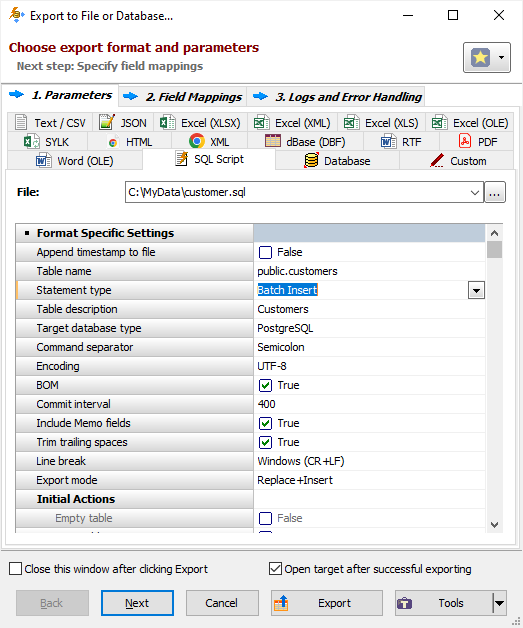
Format Specific Options
File - a file name to export data to, when exporting data from a table or SQL query, or when exporting data from a group of tables (multi-table export) to one target file. In case of multi-table exporting, all tables will be outputted to one target file, and some optional parameters can be specified in Table Mappings. The option is not available when exporting data to clipboard.
Folder - a folder name to export data to, when exporting data from a group of tables (multi-table export). Each table will be exported to a separate file in the specified folder; file names and SQL table names can be specified in Table Mappings. The option is not available when exporting data to clipboard.
Table name - table name to use in the generated statements. Command line equivalent: /SQLTableName.
Statement type - type of SQL statements. For multi-table exporting, the value can be overridden for each individual table in Table Mappings section. Allowed values:
|
Insert Creates a series of INSERT statements. |
|
Batch Insert Creates a series of batch INSERT statements. Batch INSERT command allows to insert multiple rows at a time. Commit interval (see below) is used as a batch size. Notes
|
|
Merge Creates a series of MERGE or INSERT+UPDATE statements. It is required to specify key fields (see below) to match the rows. Notes The MERGE commands are generated only for target database types that support it (Oracle, DB2, Teradata, SQL Server); for other database types, the nearest possible solution is used (e.g. INSERT with ON CONFLICT clause for PostgreSQL); if the nearest possible solution is not known for the certain database type, the pair of UPDATE and commented INSERT commands is used. |
|
Update Creates a series of UPDATE statements. It is required to specify key fields (see below) to match the rows. |
|
Delete Creates a series of DELETE statements. It is required to specify key fields (see below) to match the rows. |
|
PostgreSQL Copy Creates a series of COPY statements. COPY statement is a very specific kind of statements to insert multiple rows in PostgreSQL database. It is often used in SQL dumps. Please make sure your SQL application can work with such statements. |
Command line equivalent: /SQLStatementType.
Key fields (moved to Field mappings section) - matching fields to use in the ON (for MERGE statements) or WHERE (for UPDATE and DELETE statements) clause of the generated statements. This must be a name of a target field or a comma-separated list of several target field names. In Field mappings section, the key fields must be present among target fields. Command line equivalent: /KeyFields.
Table description - description to be applied to the target table; currently, it applies Oracle, SQL Server, PostgreSQL, and MySQL databases, and only with Add DDL option. If you specify <copy_from_source>, the application will try to use the description of the source table (if any) extracting it during the exporting, but it will require more time to process. When exporting one table, you can extract the source description (if any) using Copy from Source button. Command line equivalent: /TrgTableDescription.
Target database type - target database type, which lets the application know how to encode some specific data types in output file (for example, boolean, date, time, and timestamp). If the target database type is unknown, choose * Not specified *, in this case ANSI SQL standard will be used wherever possible. Command line equivalent: /TargetDBType.
Command separator - separator between separate SQL statements; note, that the application always completes the separator by a line break. Command line equivalent: /SQLSeparator.
Encoding - encoding of the target file(s). Command line equivalent: /Encoding.
BOM - include BOM (byte order mark) when using Unicode encoding. Reverse command line equivalent: /NoBom.
Commit interval - number of source records after which COMMIT statement should be added; if 0 is specified, COMMIT statement is added once after the last record in the script. Ignored if target database type does not support COMMIT statement in SQL. Command line equivalent: /CommitInterval.
Append timestamp to file - append current timestamp to the end of the target file name. The timestamp mask is _YYYYMMDD_HH24MISS. Command line equivalent: /AppendTimestamp.
Include MEMO fields - include contents of MEMO / CLOB fields in target; when you turn this option off, a constant describing the field type will be used instead of the field contents. MEMO / CLOB fields can store large amount of text, so including them for this target format can significantly affect the results, especially if the text contains line or column breaks or other special characters. Command line equivalent: /IncludeMemo.
Trim trailing spaces - trim trailing spaces and control characters in target. Applicable for char and varchar data only. Using this option allows to remove useless data and thus reduce the output volume. Command line equivalent: /TrimTrailingSpaces.
Initial actions - actions (commands) to add before DML statements.
Empty table - add TRUNCATE (if supported by target database) or DELETE statement into the output script before insert statements. Cannot be used together with Drop table and Add DDL options. Command line equivalent: /EmptyTable.
Drop table - add DROP TABLE statement into the output script before insert statements. Should be used together with Add DDL. Cannot be used together with Empty table option. Command line equivalent: /DropTable.
Add DDL - add DDL statement (CREATE TABLE...) into the output script before insert statements. Cannot be used together with Empty table option. Command line equivalent: /AddDDL.
Add IF (NOT) EXISTS - include IF NOT EXISTS clause in CREATE TABLE statement, and IF EXISTS clause in DROP TABLE statement. It is supported only for PostgreSQL, MySQL, and SQLite databases. Must be used together with Add DDL and/or Drop table options. Command line equivalent: /DDLCheckExistence.
Line break - line break style (i.e. how to terminate each line in the target file):
- Windows - terminate by a carriage return and a new line character (CR+LF);
- Mac - terminate by a carriage return (CR);
- Unix - terminate by a new line character (LF).
Command line equivalent: /LineTerminator.
SQL before - SQL code to add at the beginning of the target script. When exporting multiple datasets to different files, this code will be placed at the beginning of the first file in the queue.
SQL after - SQL code to add at the end of the target script. When exporting multiple datasets to different files, this code will be placed at the end of the last file in the queue.
Export Mode
|
REPLACE+INSERT Target file is created and filled with incoming rows; if the target file already exists, it is overwritten. |
|
CREATE_OR_REPLACE Blank target file (using appropriate structure) is created; if the target file already exists, it is overwritten. |
|
APPEND Target file is appended with incoming rows; if the target file does not exist, it is created. Available only in Exportizer Pro and Exportizer Enterprise. |
Note: For multi-table exporting, the value can be overridden for each individual table-to-file pair in Table Mappings section.
Command line equivalent: /ExportMode.
Record Range
Range of source records to be exported:
- Full table - all records are exported.
- Selected records only - only selected records are exported. To select rows, click the corresponding button and then select needed rows using Shift, Ctrl and arrow keys.
- From current record to the last one - all data between current and the last records are exported.
Limit the record count to - maximum number of records to be exported. If this option is not specified or it is less then 1, all records from the specified record range will be exported. If you just want to create a file without data exporting, use the corresponding Export mode instead. Command line equivalent: /LimitRecordCount.
Column Range
Range of source columns to be exported:
- All columns - all columns (including columns, which were temporary hidden by user) are exported.
- Selected column only - only selected (current) column is exported.
- Visible columns - only visible columns are exported.
Other Options
Ask before overwrite or empty existing target - ask the user to overwrite existing target for REPLACE+INSERT and CREATE_OR_REPLACE export modes. The option is not available when exporting data to clipboard. Reverse command line equivalent: /SuppressOverwriteOrDeletePrompt.
See also