


Dragging Files
You can drag SQL and supported database files from Windows Explorer and drop into the open instance of Exportizer.
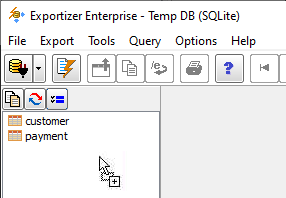
The further actions depend on the type of the dragged files (database or SQL) and on the current Exportizer state.
Database Files
If there is no open database in Exportizer, it opens the first dragged file. Otherwise, you will have several choices:
- Open selected file.
- Copy selected files into physical folder of the current database (if the database is a folder with Paradox, dBase, text files etc).
- Import tables from selected database files into the current database (only Enterprise). The application consequently opens each selected file and tries to import all database tables from it. You can choose either to let the program to do everything automatically or to control the importing by yourself (i.e. set needed options, select tables to import, specify destination table names etc).
SQL Files
Exportizer will open the folder containing the first dragged file as a database, and then load the SQL file itself (only Pro and Enterprise). (➔ Upgrade)
See also